

<p class="wp-block-paragraph">Hello, I'm Wakatchi ( <a href="https://twitter.com/wakatchi_tech">@wakatchi_tech</a> )</p>
<p class="wp-block-paragraph">When running a site developed with WordPress, you may want to save the site's unique settings or change the settings while operating the site.</p>
<p class="wp-block-paragraph">In the previous article, we introduced how to add a top menu to WordPress.</p>
<figure class="wp-block-embed is-type-wp-embed is-provider-wakatchi-tech-blog wp-block-embed-wakatchi-tech-blog"><div class="wp-block-embed__wrapper">
<div class="blog-card">
<div class="blog-card-body-outer">
<div class="blog-card-body">
<h5 class="blog-card-title">
<a href="https://wakatchi.dev/en/wordpress-admin-dev/">WordPressに独自の管理メニューを追加する① トップメニューの追加</a>
</h5>
<p class="blog-card-text">
サイト独自の設定は、WordPressの管理メニューを独自に開発することをお勧めします。サイトの設定値(パラメーター)は、プラグインエディタなどを使いfunction.phpなどの… </p>
<div class="blog-card-site-title">
<a href="https://wakatchi.dev/en/">
<img loading="lazy" src="https://wakatchi.dev/wp-content/uploads/2025/03/ww-logo2-100x100.webp" width="16" height="16" alt="" >
わかっちウォッチ </a>
</div>
</div>
</div>
<div class="blog-card-image-outer">
<a href="https://wakatchi.dev/en/wordpress-admin-dev/" class="blog-card-image-frame">
<img class="blog-card-image-src" src="https://wakatchi.dev/wp-content/uploads/2023/01/wordpress-admin-menu1-1024x683.jpg" alt="">
</a>
</div>
</div>
</div></figure>
<p class="wp-block-paragraph">In this article, we will show you how to add a submenu in WordPress, following on from the top menu we introduced previously.</p>
<div class="wp-block-vk-blocks-border-box vk_borderBox vk_borderBox-background-transparent has-text-color has-pale-cyan-blue-color is-style-vk_borderBox-style-solid-kado-tit-tab"><div class="vk_borderBox_title_container has-background has-pale-cyan-blue-background-color"><i class=""></i><h4 class="vk_borderBox_title"><strong>この記事は次のような方にお勧めです</strong></h4></div><div class="vk_borderBox_body">
<ul class="wp-block-list is-style-vk-check-mark">
<li>WordPress site developers who want to configure site-wide settings from the WordPress administration menu</li>
<li>WordPress theme and plugin developer</li>
</ul>
</div></div>
<div class="wp-block-vk-blocks-table-of-contents-new vk_tableOfContents vk_tableOfContents-style-default tabs"><div class="tab"><div class="vk_tableOfContents_title">Table of Contents</div><input type="checkbox" id="chck1"><label class="tab-label vk_tableOfContents_openCloseBtn button_status button_status-open" for="chck1" id="vk-tab-label">CLOSE</label><ul class="vk_tableOfContents_list tab_content-open">
<li class="vk_tableOfContents_list_item vk_tableOfContents_list_item-h-2">
<a href="#vk-htags-72f7e078-d4c4-43ba-bdf4-461693a0810f" class="vk_tableOfContents_list_item_link">
<span class="vk_tableOfContents_list_item_link_preNumber">1. </span>
Adding a new submenu to WordPress
</a>
</li>
<li class="vk_tableOfContents_list_item vk_tableOfContents_list_item-h-3">
<a href="#vk-htags-a0074d24-96f0-4e53-9053-366e94d3841e" class="vk_tableOfContents_list_item_link">
<span class="vk_tableOfContents_list_item_link_preNumber">1.1. </span>
Add a submenu to the top menu
</a>
</li>
<li class="vk_tableOfContents_list_item vk_tableOfContents_list_item-h-4">
<a href="#vk-htags-93b99a29-bd96-4beb-a0bd-ff5029c8b06f" class="vk_tableOfContents_list_item_link">
<span class="vk_tableOfContents_list_item_link_preNumber">1.1.1. </span>
Add top menu
</a>
</li>
<li class="vk_tableOfContents_list_item vk_tableOfContents_list_item-h-4">
<a href="#vk-htags-5144d950-bc4d-4587-992b-2379b912aa76" class="vk_tableOfContents_list_item_link">
<span class="vk_tableOfContents_list_item_link_preNumber">1.1.2. </span>
Add submenu
</a>
</li>
<li class="vk_tableOfContents_list_item vk_tableOfContents_list_item-h-2">
<a href="#vk-htags-f8e9439b-5baf-4af3-88fe-294762c466d4" class="vk_tableOfContents_list_item_link">
<span class="vk_tableOfContents_list_item_link_preNumber">2. </span>
Add a submenu to an existing top menu
</a>
</li>
<li class="vk_tableOfContents_list_item vk_tableOfContents_list_item-h-4">
<a href="#vk-htags-173b294c-ee6c-472e-8fed-f8a01bec39fe" class="vk_tableOfContents_list_item_link">
<span class="vk_tableOfContents_list_item_link_preNumber">2.1.1. </span>
Parent slug name type
</a>
</li>
<li class="vk_tableOfContents_list_item vk_tableOfContents_list_item-h-2">
<a href="#vk-htags-5263aeff-2738-4fe6-bd7c-efec23c62477" class="vk_tableOfContents_list_item_link">
<span class="vk_tableOfContents_list_item_link_preNumber">3. </span>
summary
</a>
</li>
</ul></div></div>
<h2 class="wp-block-heading" id="vk-htags-72f7e078-d4c4-43ba-bdf4-461693a0810f">Adding a new submenu to WordPress</h2>
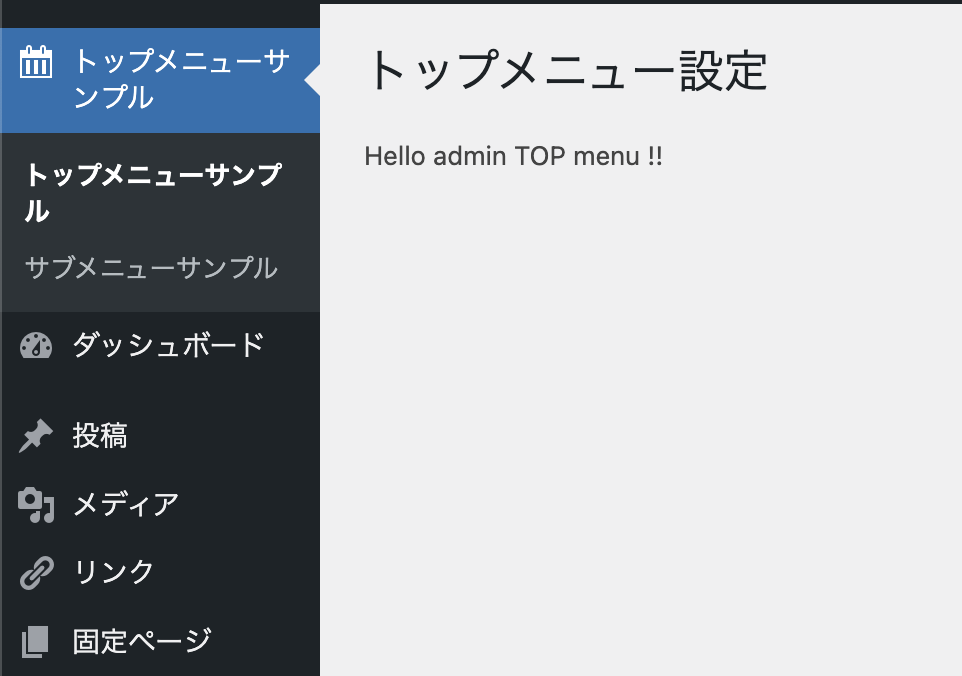
<p class="wp-block-paragraph">Add a submenu called "Submenu Sample" to the administration menu called "Top Menu Sample" that you added to the WordPress administration console. A submenu is a page included in the top menu.</p>
<figure class="wp-block-image size-full"><img src="https://wakatchi.dev/wp-content/uploads/2023/02/e8b22e1c2763a78ffba3cc29b12f4d1f.png" alt="" class="wp-image-576"/></figure>
<p class="wp-block-paragraph"></p>
<p class="wp-block-paragraph">You can embed a submenu in WordPress using the source code below.<br/>Try copying and pasting it directly into function.php or using the <a href="https://ja.wordpress.org/plugins/code-snippets/" data-type="link" data-id="https://ja.wordpress.org/plugins/code-snippets/">Code Snippets plugin</a>.</p>
<div class="hcb_wrap"><pre class="prism line-numbers lang-php" data-lang="PHP"><code><?php
add_action(
'admin_menu',
function(){
add_menu_page(
'管理メニュータイトル' ,
'トップメニューサンプル' ,
'manage_options' ,
'top_menu_sample' ,
'render_topmenu_contents' ,
'dashicons-calendar' ,
0
);
add_submenu_page(
'top_menu_sample' ,
'サブメニュータイトル' ,
'サブメニューサンプル' ,
'manage_options' ,
'sub_menu_sample' ,
'render_submenu_contents'
);
}
);
function render_topmenu_contents() {
?>
<div class="wrap">
<h1>トップメニュー設定</h1>
<p>Hello admin TOP menu !!</p>
</div>
<?php
}
function render_submenu_contents() {
?>
<div class="wrap">
<h1>サブメニュー設定</h1>
<p>Hello admin SUB menu !!</p>
</div>
<?php
}
</code></pre></div>
<p class="wp-block-paragraph"></p>
<h3 class="wp-block-heading" id="vk-htags-a0074d24-96f0-4e53-9053-366e94d3841e">Add a submenu to the top menu</h3>
<p class="wp-block-paragraph">You can incorporate submenus into the top menu created with <strong><span data-color="#fcb900" style="background: linear-gradient(transparent 60%,rgba(252, 185, 0, 0.7) 0);" class="vk_highlighter">add_menu_page</span></strong>() by using <strong><span data-color="#fcb900" style="background: linear-gradient(transparent 60%,rgba(252, 185, 0, 0.7) 0);" class="vk_highlighter">add_submenu_page</span></strong>().</p>
<h4 class="wp-block-heading" id="vk-htags-93b99a29-bd96-4beb-a0bd-ff5029c8b06f">Add top menu</h4>
<p class="wp-block-paragraph">Add a function to add an admin menu to the hook named <strong><span data-color="#fcb900" style="background: linear-gradient(transparent 60%,rgba(252, 185, 0, 0.7) 0);" class="vk_highlighter">admin_menu</span></strong> using <strong><span data-color="#fcb900" style="background: linear-gradient(transparent 60%,rgba(252, 185, 0, 0.7) 0);" class="vk_highlighter">add_action</span></strong>().</p>
<div class="hcb_wrap"><pre class="prism line-numbers lang-php" data-lang="PHP" data-line="2,3"><code><?php
add_action(
'admin_menu',
function(){
// your code
}
);</code></pre></div>
<p class="wp-block-paragraph"></p>
<p class="wp-block-paragraph">In the function to add the admin menu, implement adding the admin menu using <strong><span data-color="#fcb900" style="background: linear-gradient(transparent 60%,rgba(252, 185, 0, 0.7) 0);" class="vk_highlighter">add_menu_page</span></strong>().</p>
<div class="hcb_wrap"><pre class="prism line-numbers lang-php" data-lang="PHP" data-line="2"><code><?php
add_menu_page(
'管理メニュータイトル' ,
'トップメニューサンプル' ,
'manage_options' ,
'top_menu_sample' ,
'render_topmenu_contents' ,
'dashicons-calendar' ,
0
);
function render_topmenu_contents() {
?>
<div class="wrap">
<h1>トップメニュー設定</h1>
<p>Hello admin TOP menu !!</p>
</div>
<?php
}</code></pre></div>
<p class="wp-block-paragraph"></p>
<p class="wp-block-paragraph">For information on the arguments and return values of <strong><span data-color="#fcb900" style="background: linear-gradient(transparent 60%,rgba(252, 185, 0, 0.7) 0);" class="vk_highlighter">add_menu_page</span></strong>(), please refer to the previous article.</p>
<figure class="wp-block-embed is-type-wp-embed is-provider-wakatchi-tech-blog wp-block-embed-wakatchi-tech-blog"><div class="wp-block-embed__wrapper">
<div class="blog-card">
<div class="blog-card-body-outer">
<div class="blog-card-body">
<h5 class="blog-card-title">
<a href="https://wakatchi.dev/en/wordpress-admin-dev/">WordPressに独自の管理メニューを追加する① トップメニューの追加</a>
</h5>
<p class="blog-card-text">
サイト独自の設定は、WordPressの管理メニューを独自に開発することをお勧めします。サイトの設定値(パラメーター)は、プラグインエディタなどを使いfunction.phpなどの… </p>
<div class="blog-card-site-title">
<a href="https://wakatchi.dev/en/">
<img loading="lazy" src="https://wakatchi.dev/wp-content/uploads/2025/03/ww-logo2-100x100.webp" width="16" height="16" alt="" >
わかっちウォッチ </a>
</div>
</div>
</div>
<div class="blog-card-image-outer">
<a href="https://wakatchi.dev/en/wordpress-admin-dev/" class="blog-card-image-frame">
<img class="blog-card-image-src" src="https://wakatchi.dev/wp-content/uploads/2023/01/wordpress-admin-menu1-1024x683.jpg" alt="">
</a>
</div>
</div>
</div></figure>
<h4 class="wp-block-heading" id="vk-htags-5144d950-bc4d-4587-992b-2379b912aa76">Add submenu</h4>
<p class="wp-block-paragraph">Add a submenu to the admin menu you added using <strong><span data-color="#fcb900" style="background: linear-gradient(transparent 60%,rgba(252, 185, 0, 0.7) 0);" class="vk_highlighter">add_submenu_page</span></strong>().</p>
<div class="hcb_wrap"><pre class="prism line-numbers lang-php" data-lang="PHP" data-line="2"><code><?php
add_submenu_page(
'top_menu_sample' ,
'サブメニュータイトル' ,
'サブメニューサンプル' ,
'manage_options' ,
'sub_menu_sample' ,
'render_submenu_contents'
);
function render_submenu_contents() {
?>
<div class="wrap">
<h1>サブメニュー設定</h1>
<p>Hello admin SUB menu !!</p>
</div>
<?php
}</code></pre></div>
<p class="wp-block-paragraph"></p>
<p class="wp-block-paragraph">Now let's look at the specifications of <strong><span data-color="#fcb900" style="background: linear-gradient(transparent 60%,rgba(252, 185, 0, 0.7) 0);" class="vk_highlighter">add_submenu_page</span></strong>().</p>
<div class="wp-block-vk-blocks-border-box vk_borderBox vk_borderBox-background-transparent has-text-color has-vivid-cyan-blue-color is-style-vk_borderBox-style-solid-kado-tit-banner"><div class="vk_borderBox_title_container has-background has-vivid-cyan-blue-background-color"><i class=""></i><h4 class="vk_borderBox_title"><span data-color="#fcb900" style="background: linear-gradient(transparent 60%,rgba(252, 185, 0, 0.7) 0);" class="vk_highlighter"><strong>add_submenu_page</strong></span>()の引数</h4></div><div class="vk_borderBox_body">
<ul class="wp-block-list">
<li>$parent_slug (<strong><mark style="background-color:rgba(0, 0, 0, 0)" class="has-inline-color has-vivid-red-color">required</mark></strong>)<br/>The parent slug name to embed the submenu in.</li>
<li>$page_title (<strong><mark style="background-color:rgba(0, 0, 0, 0)" class="has-inline-color has-vivid-red-color">required</mark></strong>)<br/>Page title of the submenu.<br/>In this article, it will be displayed as "Test Top Menu" on the left side of the admin console.</li>
<li>$menu_title (<strong><mark style="background-color:rgba(0, 0, 0, 0)" class="has-inline-color has-vivid-red-color">required</mark></strong>)<br/>The text to use for the menu title.<br/>In this article, "Test Top Menu" will be displayed on the left side of the admin console.</li>
<li>$capability (<strong><mark style="background-color:rgba(0, 0, 0, 0)" class="has-inline-color has-vivid-red-color">required</mark></strong>)<br/>The capability required to display this menu to the user.<br/>In this article, we are granting the managed_options capability, which allows access to the administration menu.</li>
<li>$menu_slug (<mark style="background-color:rgba(0, 0, 0, 0)" class="has-inline-color has-vivid-red-color"><strong>required</strong></mark>)<br/>The slug name to refer to this menu.<br/>It must be unique for this menu page and can only contain lowercase alphanumeric characters, dashes, and underscores. If you specify the character specified in $parent_slug, the submenu screen will default to the top menu.</li>
<li>$function (optional)<br/>Function called to output the content of this page.</li>
</ul>
<ul class="wp-block-list">
<li>$hook_suffix<br/>The prefix for the function that receives the results of processing the pages displayed in this administration menu.</li>
</ul>
</div></div>
<p class="wp-block-paragraph"></p>
<h2 class="wp-block-heading" id="vk-htags-f8e9439b-5baf-4af3-88fe-294762c466d4">Add a submenu to an existing top menu</h2>
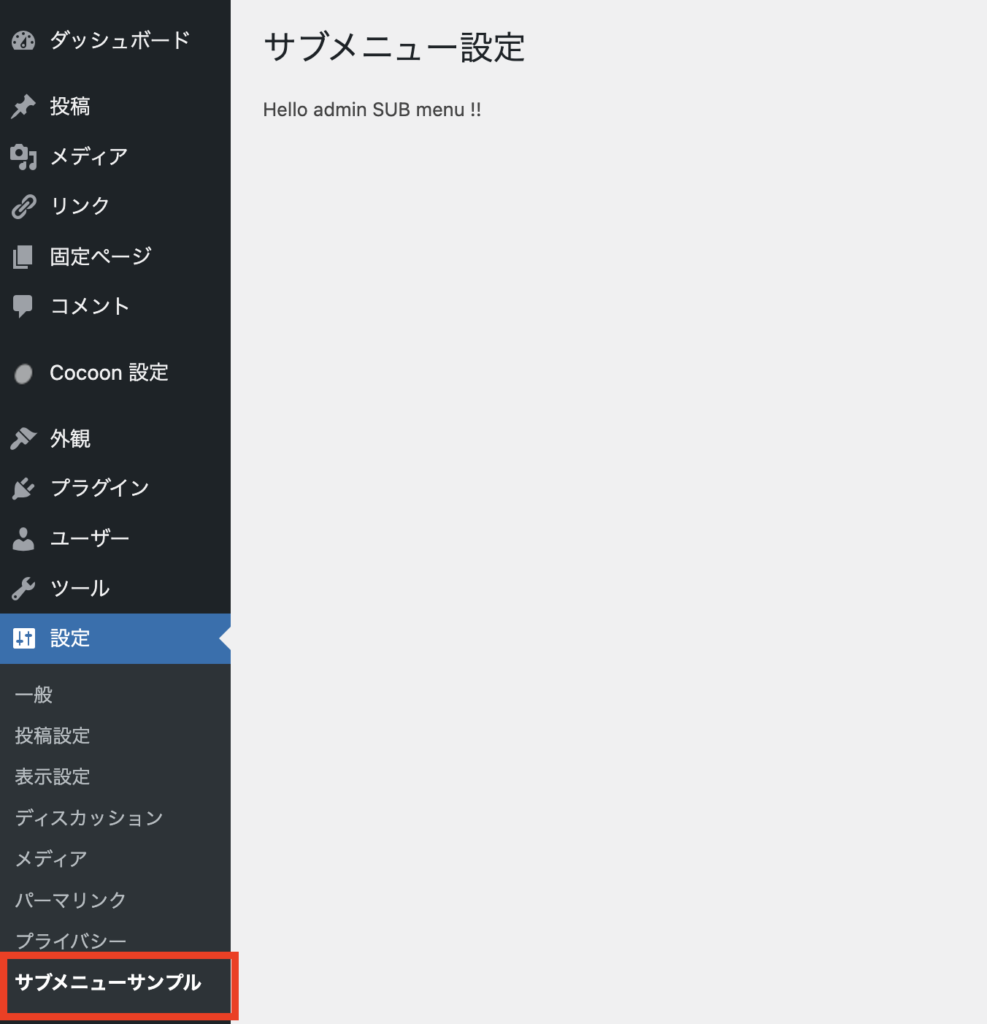
<p class="wp-block-paragraph">You can add submenus to the existing top menu built into WordPress by specifying the parent slug name in <strong><span data-color="#fcb900" style="background: linear-gradient(transparent 60%,rgba(252, 185, 0, 0.7) 0);" class="vk_highlighter">add_submenu_page</span></strong>().</p>
<figure class="wp-block-image size-large"><img src="https://wakatchi.dev/wp-content/uploads/2023/02/wordpress-admin-menu-submenu-ex_01-987x1024.png" alt="" class="wp-image-596"/></figure>
<p class="wp-block-paragraph"></p>
<p class="wp-block-paragraph">You can incorporate a submenu into an existing top menu using the source code below.</p>
<div class="hcb_wrap"><pre class="prism line-numbers lang-php" data-lang="PHP" data-line="5"><code><?php
add_action(
'admin_menu',
function(){
add_submenu_page(
'options-general.php', // 組み込みのトップメニュー
'サブメニュータイトル' ,
'サブメニューサンプル' ,
'manage_options' ,
'sub_menu_sample' ,
'render_submenu_contents'
);
}
);
function render_submenu_contents() {
?>
<div class="wrap">
<h1>サブメニュー設定</h1>
<p>Hello admin SUB menu !!</p>
</div>
<?php
}
</code></pre></div>
<p class="wp-block-paragraph"></p>
<p class="wp-block-paragraph">You can change the screen that appears when you click the administration menu to a submenu.</p>
<h4 class="wp-block-heading" id="vk-htags-173b294c-ee6c-472e-8fed-f8a01bec39fe">Parent slug name type</h4>
<p class="wp-block-paragraph">The above mentioned source code was incorporated into the built-in settings menu.</p>
<p class="wp-block-paragraph">You can also add submenus to other built-in menus by changing the parent slug, so please give it a try.</p>
<figure class="wp-block-table is-style-vk-table-border-stripes"><table><tbody><tr><td>dashboard</td><td>index.php</td></tr><tr><td>Post</td><td>edit.php</td></tr><tr><td>media</td><td>upload.php</td></tr><tr><td>Fixed page</td><td>edit.php?post_type=page</td></tr><tr><td>comment</td><td>edit-comments.php</td></tr><tr><td>theme</td><td>themes.php</td></tr><tr><td>plugin</td><td>plugins.php</td></tr><tr><td>user</td><td>users.php</td></tr><tr><td>tool</td><td>tools.php</td></tr><tr><td>option</td><td>options-general.php</td></tr></tbody></table><figcaption class="wp-element-caption">A list of parent slug names</figcaption></figure>
<h2 class="wp-block-heading" id="vk-htags-5263aeff-2738-4fe6-bd7c-efec23c62477">summary</h2>
<p class="wp-block-paragraph">This time, I introduced how to add a submenu to the WordPress admin console. Like the top menu, it requires implementation using PHP, but I think it was easier than you might think.</p>
<p class="wp-block-paragraph">From next time, we will be describing more practical methods, such as updating settings on the menu page and downloading data.</p>
<div class="wp-block-vk-blocks-balloon vk_balloon vk_balloon-position-left vk_balloon-type-speech vk_balloon-animation-none"><div class="vk_balloon_icon"><figure><img class="vk_balloon_icon_image vk_balloon_icon_image-type-normal " src="https://wakatchi.dev/wp-content/uploads/2022/07/wakatchi_icon_2.jpg" alt=""/><figcaption class="vk_balloon_icon_name">わかっち</figcaption></figure></div><div class="vk_balloon_content_outer"><div class="vk_balloon_content has-background-color has-luminous-vivid-amber-background-color vk_balloon_content_fullwidth"><span class="vk_balloon_content_before has-text-color has-luminous-vivid-amber-color"></span><span class="vk_balloon_content_after "></span>
<p class="wp-block-paragraph">The purpose of creating an administration menu is to store operational settings and allow site operators to collect data.</p>
</div></div></div>
<p class="wp-block-paragraph"><span style="font-size: 12pt;">I hope this article is of some help.</span></p>
<p class="wp-block-paragraph"><span style="font-size: 12pt;">Thank you for reading to the end!</span></p>
Add a submenu called "Submenu Sample" to the administration menu called "Top Menu Sample" that you added to the WordPress administration console. A submenu is a page included in the top menu.
You can embed a submenu in WordPress using the source code below. Try copying and pasting it directly into function.php or using the Code Snippets plugin.
Add a submenu to the admin menu you added using add_submenu_page().
<?php
add_submenu_page(
'top_menu_sample' ,
'サブメニュータイトル' ,
'サブメニューサンプル' ,
'manage_options' ,
'sub_menu_sample' ,
'render_submenu_contents'
);
function render_submenu_contents() {
?>
<div class="wrap">
<h1>サブメニュー設定</h1>
<p>Hello admin SUB menu !!</p>
</div>
<?php
}
Now let's look at the specifications of add_submenu_page().
add_submenu_page()の引数
$parent_slug (required) The parent slug name to embed the submenu in.
$page_title (required) Page title of the submenu. In this article, it will be displayed as "Test Top Menu" on the left side of the admin console.
$menu_title (required) The text to use for the menu title. In this article, "Test Top Menu" will be displayed on the left side of the admin console.
$capability (required) The capability required to display this menu to the user. In this article, we are granting the managed_options capability, which allows access to the administration menu.
$menu_slug (required) The slug name to refer to this menu. It must be unique for this menu page and can only contain lowercase alphanumeric characters, dashes, and underscores. If you specify the character specified in $parent_slug, the submenu screen will default to the top menu.
$function (optional) Function called to output the content of this page.
$hook_suffix The prefix for the function that receives the results of processing the pages displayed in this administration menu.
Add a submenu to an existing top menu
You can add submenus to the existing top menu built into WordPress by specifying the parent slug name in add_submenu_page().
You can incorporate a submenu into an existing top menu using the source code below.
You can change the screen that appears when you click the administration menu to a submenu.
Parent slug name type
The above mentioned source code was incorporated into the built-in settings menu.
You can also add submenus to other built-in menus by changing the parent slug, so please give it a try.
dashboard
index.php
Post
edit.php
media
upload.php
Fixed page
edit.php?post_type=page
comment
edit-comments.php
theme
themes.php
plugin
plugins.php
user
users.php
tool
tools.php
option
options-general.php
A list of parent slug names
summary
This time, I introduced how to add a submenu to the WordPress admin console. Like the top menu, it requires implementation using PHP, but I think it was easier than you might think.
From next time, we will be describing more practical methods, such as updating settings on the menu page and downloading data.

わかっち
The purpose of creating an administration menu is to store operational settings and allow site operators to collect data.